
Using DDownload with JDownloader 2
JDownloader 2 is one of the most practical ways to manage multiple DDownload links. The original guide already covered the basic account setup; this version keeps those steps and adds the newer August 2026 benchmark.
Basic setup
1. Open Account Manager
In JDownloader, go to Settings → Account Manager. Choose Add and search for DDownload in the supported service list.
2. Add your DDownload credentials
Enter the account credentials and let JDownloader verify the account. Confirm that the account type and expiry status shown in Account Manager match what you expect.
3. Add links to LinkGrabber
Copy DDownload links into LinkGrabber or use clipboard monitoring, review the detected files, and start the queue.
Free vs Premium in JDownloader
JDownloader can still process free links, but the free workflow is far less convenient for long queues because waiting steps and browser-style verification may interrupt automation. Premium / Ultimate removes the waiting and captcha restrictions advertised for the free flow and supports parallel downloads.
Real JDownloader test
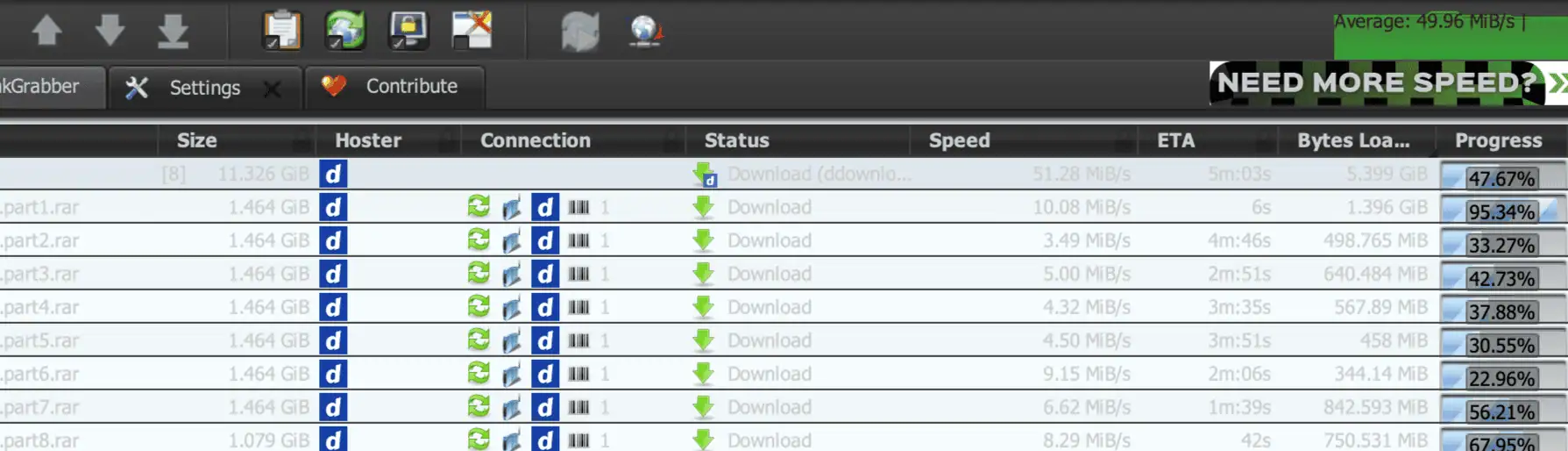
In my August 2026 test, I loaded an 11.3 GiB split archive with eight active parts. JDownloader reported an average total speed of 49.96 MiB/s during the captured session.
Use the same multi-part workflow without free-tier waits: the annual Ultimate plan costs €39.99, or about €0.11 per day.
Get 12 Months of Ultimate →Recommended settings: start conservatively
There is no single best simultaneous-download count for every connection. Start with a few concurrent downloads, watch total throughput and stability, then increase gradually. My eight-part screenshot shows that DDownload can handle a larger queue in the tested environment, not that eight is mandatory.
Common problems
JDownloader shows the account as free
Re-enter the credentials and confirm that the paid period has not expired. If the official account page shows Ultimate but JDownloader still shows free, refresh or remove and re-add the account.
Premium is active but speed is low
Compare one browser download with the JDownloader queue. If both are slow, test routing and server conditions rather than immediately changing connection counts. See the VPN routing guide.
Downloads stop or retry
Check the file link, local connection and Account Manager status. Resume support is useful for large files, but it cannot fix a deleted file or an unstable local network.
Ready to Maximize Your JDownloader Workflow?
Get up to 200 GB/day, parallel downloads and no free-tier cooldown for about €0.11 per day.
Get 12 Months of Ultimate →